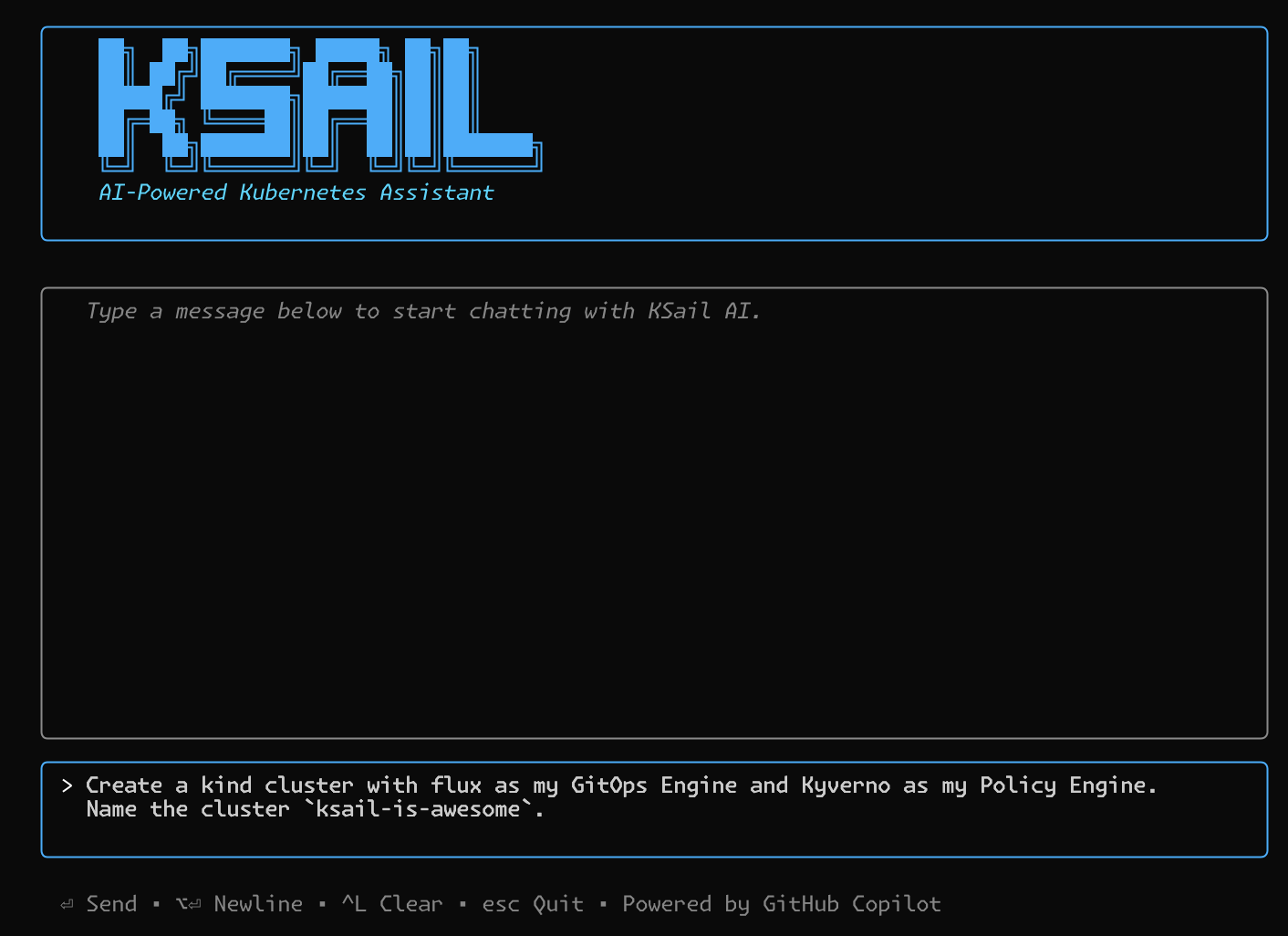
What if managing Kubernetes clusters was as simple as having a conversation?
KSail has always been about reducing overhead. It started as shell scripts, became a .NET tool with embedded binaries, and is now a pure Go SDK that bundles kubectl, helm, kind, k3d, flux, and argocd into a single binary. Each iteration removed friction: first installation overhead (one binary instead of six tools), then workflow overhead (consistent commands across distributions).
The chat feature is the next step: removing cognitive overhead. Instead of memorizing that ksail cluster init --distribution Talos --provider Hetzner --cni Cilium --gitops-engine Flux --local-registry '${GITHUB_USER}:${GITHUB_TOKEN}@ghcr.io/devantler-tech/ksail/system-test-manifests' --control-planes 3 --workers 2 is the syntax to create a Talos cluster on Hetzner with three control plane nodes, two worker nodes, Cilium as a CNI, and Flux as your GitOps engine set up to sync with an OCI image in GHCR, you can just say: “Create a HA Talos cluster on Hetzner with Cilium and Flux set up to sync with ghcr.io/devantler-tech/ksail/system-test-manifests.” (pheeew).
This post covers the technical journey of building ksail chat using the GitHub Copilot SDK for Go, Bubbletea TUI framework, and glamour for markdown rendering.
- See It in Action
- Motivation
- The Tech Stack
- Architecture Overview
- Building with AI Assistance
- Technical Decisions and Trade-offs
- What’s Next
See It in Action
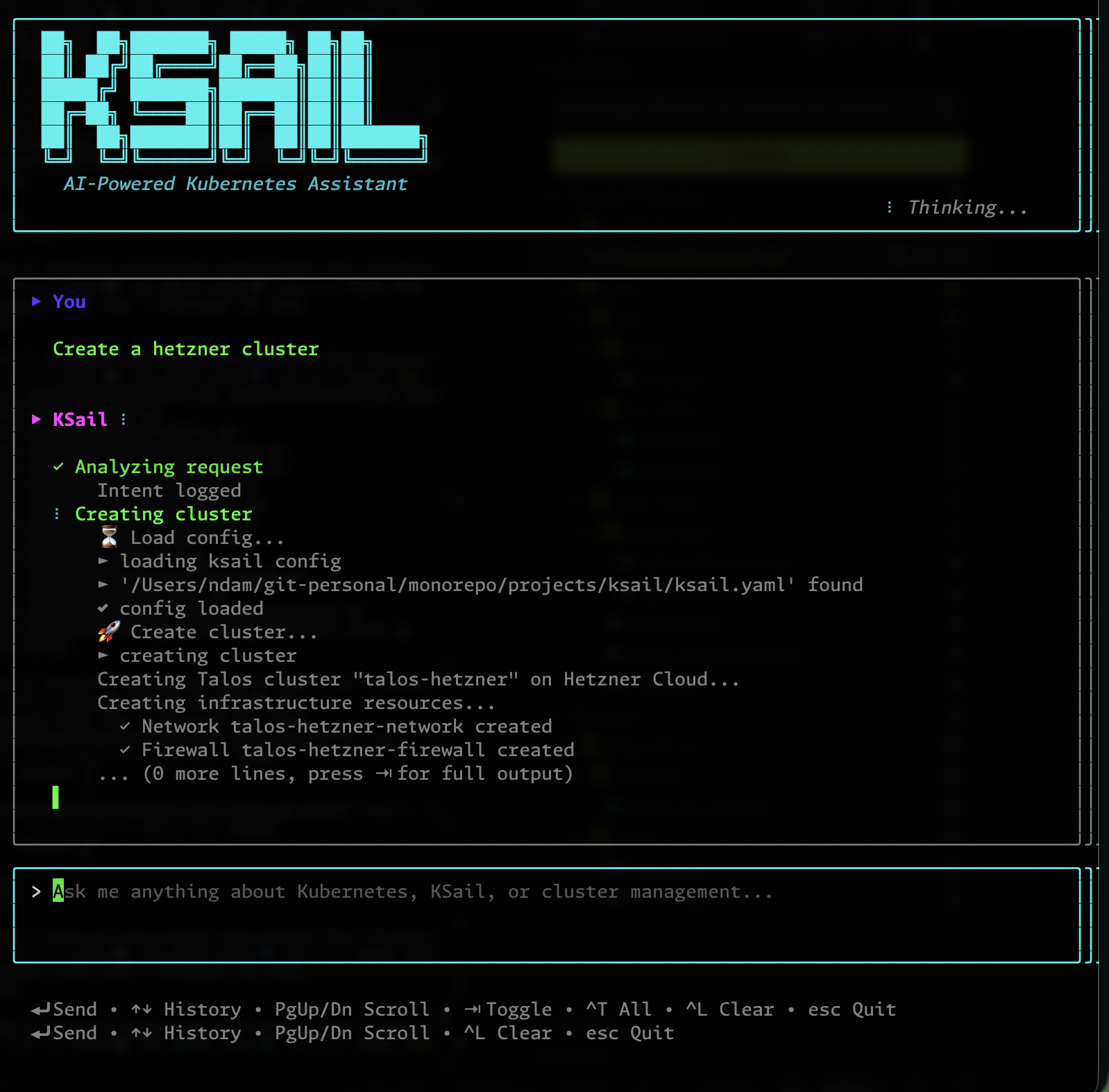
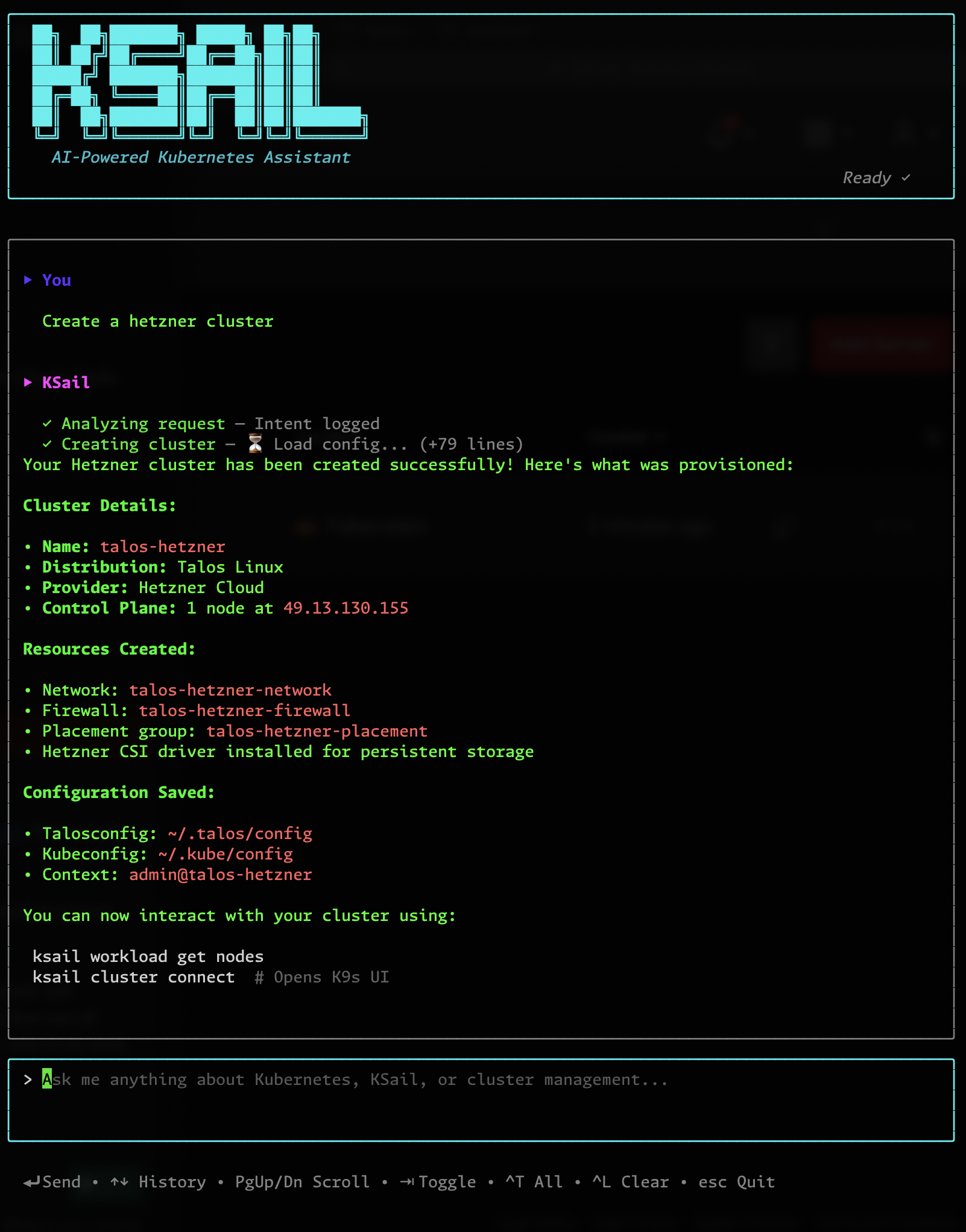
Before diving into the implementation, let’s see what we’re building. Here’s ksail chat creating a cluster on Hetzner Cloud from a single natural language request:
1. Start the conversation — ask to create a cluster on Hetzner
2. Task complete — the assistant finishes provisioning the cluster
3. Verification — the cluster appears in Hetzner Cloud

The entire workflow happens in the terminal — no context switching, no remembering flags.
Motivation
KSail already makes Kubernetes development easier by bundling common tools into a single Go binary. But users still need to remember commands, flags, and workflows. The chat feature completes the progression:
| Before KSail | With KSail CLI | With KSail Chat |
|---|---|---|
| 5+ tools to install | 1 binary | 1 binary |
| Memorize each tool’s flags | Read --help |
Just describe what you want |
| Copy commands from docs | Run unified commands | “Create a cluster” |
KSail already knows how to do everything — now it understands what you want to do. The assistant needs to understand KSail’s capabilities, execute real commands (not just explain them), work entirely in the terminal, and respect security boundaries. Building that required three key pieces working together.
The Tech Stack
Each requirement above pointed to a specific technical choice: an AI backend for understanding and action, a TUI framework for terminal-native interaction, and a markdown renderer for readable output.
GitHub Copilot SDK for Go
The Copilot SDK for Go provides the AI backbone. At time of writing, I used v0.1.18. It handles:
- Streaming responses — tokens arrive as they’re generated
- Tool calling — the model can invoke functions you define
- Conversation history — multi-turn dialogues with context
The SDK abstracts away the complexity of the Copilot API, letting me focus on building the experience.
Bubbletea TUI Framework
Bubbletea is an Elm-inspired framework for building terminal apps in Go. It uses a functional model where:
- Model holds the application state
- Update handles messages and returns a new model
- View renders the model to a string
This architecture makes state management predictable — every state transition is explicit. See the chat TUI model for the full implementation.
Glamour for Markdown Rendering
AI responses often include markdown formatting. glamour renders it beautifully in the terminal — code blocks get syntax highlighting, headers become bold, and lists render cleanly.
Architecture Overview
The SDK, TUI, and renderer handle how the interface works. The harder question: how do we make the AI actually useful? An LLM that just talks is nice, but we need it to execute real commands and stay within security boundaries.
Auto-Generated Tools from Cobra Commands
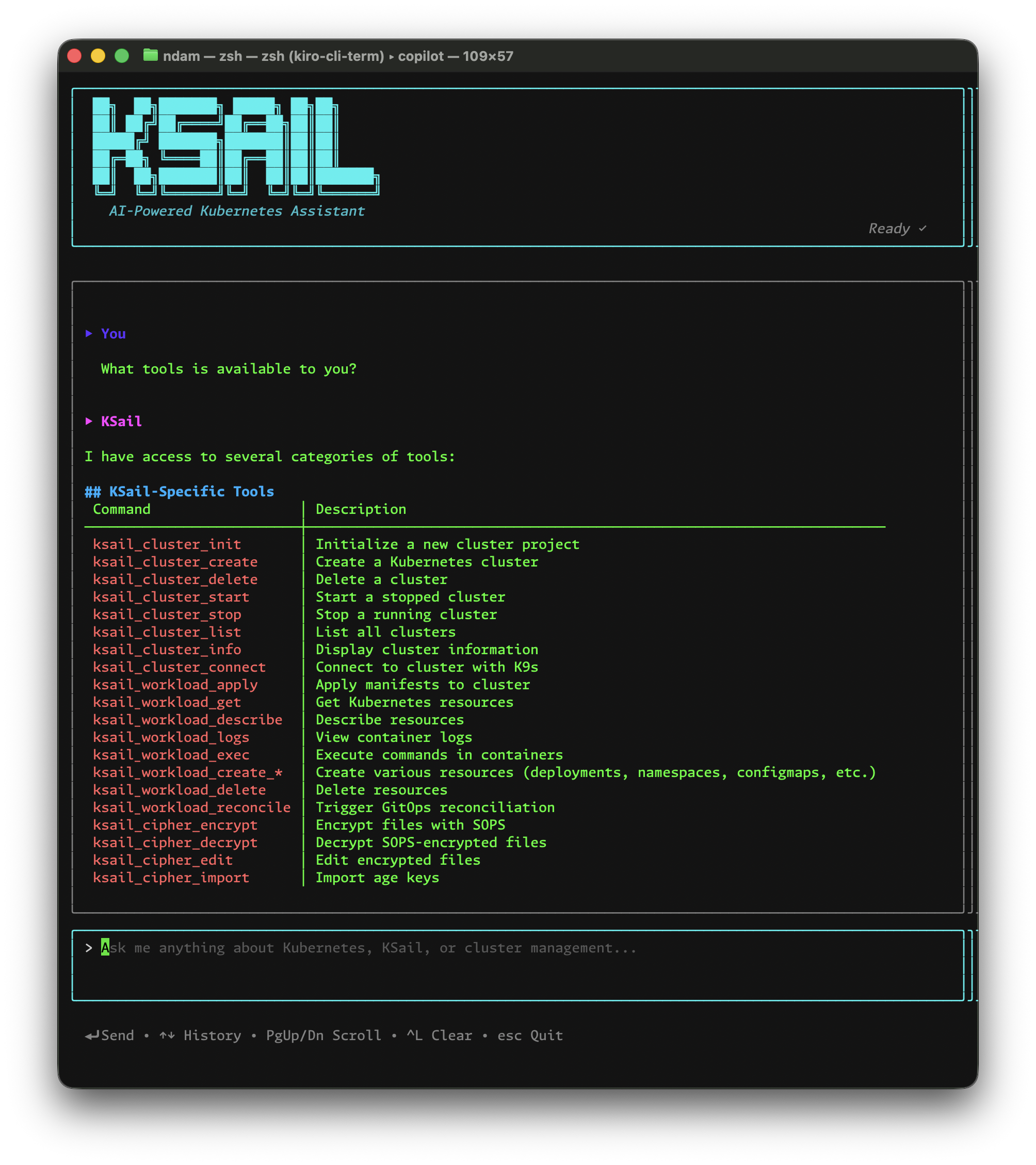
KSail has 92+ CLI commands, all built with Cobra. This consistency is what makes auto-generation possible — every command has the same structure: name, description, flags with types and defaults.
I built a generator that walks KSail’s command tree, converts each command’s flags to JSON Schema, and creates tool handlers that invoke the actual KSail logic. The AI doesn’t shell out to ksail — it calls the same Go functions the CLI uses.
The lesson learned: auto-discovering all 92 commands broke things. LLMs have a practical limit on how many tools they can reason about effectively — this is a known issue called tool overload. When presented with too many options, the model’s ability to select the right tool degrades significantly. Some commands (like internal debug utilities) also shouldn’t be exposed at all. The solution was to keep auto-discovery but add an exclusion filter — now only ~25 curated commands become tools. Best of both worlds: no manual sync, but a focused toolset the model can actually use well.
Tools let the assistant act. But to use them well, it needs context about KSail itself.
Embedded Documentation Context
The assistant needs to understand KSail’s concepts. I use go:embed to bundle 100+ documentation files at compile time, giving the model deep knowledge of KSail’s architecture, configuration options, and best practices — without requiring network requests. See BuildSystemContext for details.
This embedded context includes KSail’s distribution and provider abstractions. The same chat conversation can create a local Kind cluster for development or a Talos cluster on Hetzner for production — the AI uses the same tools, just with different flags. Users don’t need to know which underlying tool handles which provider.
With tools and context in place, the assistant can execute commands. But power needs guardrails.
Security Boundaries for File Operations
The assistant can read and write files, but only within the current working directory. The securePath function in the tools package validates all paths by resolving symlinks and verifying the target stays within the workspace — preventing symlink escape attacks where a malicious symlink could point outside the workspace.
With the core architecture solid — tools, context, and security — the final layer is polish.
User Experience Polish
Beyond the core AI integration, the TUI includes thoughtful UX details:
- Prompt history — press ↑/↓ to recall previous messages
- Real-time tool streaming — see command output as it runs, not just when complete
- Collapsible tool output — Tab toggles individual tools, Ctrl+T toggles all
- Mouse scrolling — wheel scrolls the conversation viewport
- Adaptive rendering — markdown re-renders when terminal width changes
Building with AI Assistance
Here’s the meta part: an AI assistant built using AI assistance. The same pattern — removing cognitive overhead — applied to the development process itself.
VS Code’s agent mode with Claude Opus 4.5 was invaluable throughout this project. But TUI development presents a unique challenge — the AI can’t “see” what renders in your terminal. How do you debug visual issues with a text-based assistant?
The Image Snapshot Workflow
My solution: image snapshots. The workflow:
- Run the TUI with test inputs
- Screenshot the terminal output
- Share the image with Claude via VS Code’s attachment feature
- Describe what’s wrong — “The viewport is overlapping the input field”
- Apply the suggested fix and iterate
This visual feedback loop was essential for:
- Debugging layout issues
- Fine-tuning the viewport scroll behavior
- Aligning the collapsible tool output sections
Iterating on TUI Design
The TUI went through several iterations:
Version 1: Simple streaming text, no viewport — text would scroll off screen
Version 2: Added viewport with scroll handling — but input field position was wrong
Version 3: Proper layout with input at bottom, content scrolling above — working!
Version 4: Added collapsible tool invocations with Tab toggle — polished experience
Each iteration was a conversation with Claude, showing screenshots and describing what felt wrong.
Technical Decisions and Trade-offs
Every project has its thorny edge cases. Here are the three that taught me the most.
Per-Turn Subscription Pattern
Bubbletea uses subscriptions for async events (like streaming tokens). A naive approach subscribes once at initialization, but this causes issues when starting new turns — old subscriptions conflict with new ones. The solution was to subscribe fresh for each AI turn, creating a new channel and subscription tied to that specific conversation turn. See the Model.Update method for the implementation.
Context Cancellation Challenges
The Copilot SDK doesn’t support mid-stream cancellation. If you cancel the context, the SDK panics rather than gracefully stopping. My workaround: use a context that’s never cancelled, and track “stop requested” via a separate flag. This isn’t ideal, but it’s documented in the code for future improvement when the SDK adds support.
Tool Result Ordering
Tools can execute in any order, but results should appear in the order the model requested them. The SDK’s channel-based output didn’t guarantee this, so I implemented a mutex-protected FIFO buffer to ensure consistent ordering in the UI.
What’s Next
The chat assistant is functional but still in its infancy. Each improvement targets a specific friction point — continuing the “remove overhead” theme:
- Smarter clarifications — remove the overhead of being precise upfront; let vague requests trigger smart follow-up questions, or intelligent inferences
- More tools — reduce the gap between what KSail can do and what the assistant can do
- Permission prompts — guard write operations with user confirmation to increase safety, and allow configurable auto-approvals for power users
- Conversation persistence — remove the overhead of re-explaining context across sessions
- Better context — understand the user’s specific cluster state, not just general KSail knowledge
- Streaming cancellation — more responsive interaction when the SDK supports it
If you want to try it:
# Install KSail v5+
brew install devantler-tech/tap/ksail

# Start a chat session (requires GitHub Copilot access)
ksail chat

# Or use non-TUI mode
ksail chat --tui=false
The full implementation is in the KSail repository — the TUI lives in pkg/cli/ui/chat/ and the tools generator in pkg/svc/chat/generator/.
Feedback and contributions welcome!
This post was written with AI assistance (Claude Opus 4.5 via VS Code), following my outline and intent.