
In this post, I will share my experience setting up MacOS as a developer machine. I will cover the following topics:
- Managing Packages
- Managing Dotfiles and System Configuration
- Git, SSH, and GPG Keys
- Passwords and Secrets
- Configuring the Terminal
- Setting Up Your IDE
- Remote Development
- Conclusion
Managing Packages
There are a few options available for managing packages on MacOS. Notable package managers include:
Due to Homebrew seemingly having the most popularity and the largest community, I went with Homebrew, and I have been using it extensively, for a few years now. In my experience, Homebrew has been reliable and easy to use, and I have yet to encounter that it is missing a feature that I need, or that it is not working as expected.
Installing and Using Homebrew
Installing Homebrew is straightforward, and is well documented on the Homebrew website. Once installed, you can install packages using the brew install command. For example, to install Git, you can run:
brew install git
It can also be used to install applications (Homebrew calls these casks), such as Visual Studio Code:
brew install --cask visual-studio-code
Homebrew can also snapshot your installed packages and applications, which can be useful when migrating to a new machine, or when you own multiple machines. You will learn how I prefer to manage my system configuration including my packages and applications in the next section Managing Dotfiles and System Configuration.
Benefits of Using Homebrew
- Easy to install and use
- Extensive library of packages
- Ability to install applications
- Ability to snapshot installed packages and applications
Managing Dotfiles and System Configuration
Many applications and packages require storing configuration files in your home directory. These files are often referred to as dotfiles, as the folders and files are prefixed with a dot (.). Examples of dotfiles include .bashrc, .gitconfig, and .vimrc, but there are many more.
When you use valuable time configuring, for example, your Git settings, you probably want to keep these settings when you switch to a new machine. This is where dotfiles come in handy. By storing your dotfiles in a version-controlled repository, you can easily sync your configuration across multiple machines.
However keeping stuff in sync is no simple task, and there are a multitude of ways to do it. I have personally tried a few different approaches, that varied in complexity and flexibility. It was not until I discovered MackUp that I found a solution that worked well for me.
MackUp is a simple utility that, when executed, will symlink your dotfiles and system configuration to a storage provider of your choice. It supports a variety of storage providers, such as Dropbox, Google Drive, OneDrive, or Git. As I prefer to keep most of my stuff in Git, I of course use the Git storage provider. As such the following examples will also assume that Git is used as the storage provider.
Installing and Using MackUp
To get started with MackUp, you can install it using Homebrew:
brew install mackup
After installing MackUp, you can configure it by creating a .mackup.cfg file in your home directory. Here is an example configuration file:
[storage]
engine = git
directory = ~/dotfiles
This configuration tells MackUp to store dotfiles in a Git repository located at ~/dotfiles. You can then run mackup backup to symlink your dotfiles to the Git repository. When you switch to a new machine, you can run mackup restore to restore your dotfiles.
Storing Brew Bundles in MackUp
In addition to storing your dotfiles, you can also store your Homebrew packages and applications in MackUp. This can be done by creating a Brewfile, which can be used to snapshot all the packages and applications you have installed on a machine. You can create a Brewfile of your installed packages and applications by running:
brew bundle dump
This will create a Brewfile in your home directory that lists all your installed packages and applications. To install these packages and applications on a new machine, you can run:
brew bundle install
The Brewfile is automatically picked up by MackUp when you run mackup backup.
Convenience Scripts
To make it easier to manage your dotfiles and system configuration, you can create convenience scripts that automate the process. Here are the scripts I use for managing my dotfiles:
Backup Script
This script will backup your dotfiles and system configuration to a Git repository, and store your Homebrew packages and applications in a Brewfile. It supports both macOS and Linux. To run the script:
chmod +x backup.sh # To make the script executable
./backup.sh
The script must be placed in the root of your dotfiles repository. Run it from your home directory.
#!/bin/bash
check_os() {
  if [ "$(uname)" != "Darwin" ] && [ "$(uname)" != "Linux" ]; then
    echo "This script is only for macOS and Linux"
    exit 1
  fi
}

create_mackup_config() {
  echo_title "📝 Creating Mackup config"
  if [ -f "$HOME/.mackup.cfg" ]; then
    return
  fi
  echo "[storage]
engine = file_system
path = $HOME/dotfiles" >"$HOME/.mackup.cfg"
}

install_homebrew() {
  if ! [ -x "$(command -v brew)" ]; then
    echo_title "🍺 Installing Homebrew"
    /bin/bash -c "$(curl -fsSL https://raw.githubusercontent.com/Homebrew/install/HEAD/install.sh)"
    (
      echo
      echo 'eval "$(/opt/homebrew/bin/brew shellenv)"'
    ) >>"$HOME"/.zprofile
    eval "$(/opt/homebrew/bin/brew shellenv)"
  fi
}

install_rosetta() {
  if ! [ -x "$(command -v arch)" ]; then
    echo_title "📄 Installing Rosetta 2"
    softwareupdate --install-rosetta --agree-to-license
  fi
}

install_mackup() {
  if ! [ -x "$(command -v mackup)" ]; then
    echo_title "📦 Installing Mackup"
    brew install mackup
  fi
}

echo_title() {
  local title=$1
  echo ""
  echo "$title"
}

stop_gpg_agent() {
  echo_title "🔒 Stopping GPG agent"
  if [ -x "$(command -v gpgconf)" ]; then
    gpgconf --kill gpg-agent
  elif [ -x "$(command -v gpg-connect-agent)" ]; then
    gpg-connect-agent killagent /bye
  else
    echo "GPG tools not found, skipping GPG agent stop"
  fi
}

start_gpg_agent() {
  echo_title "🔑 Starting GPG agent"
  if [ -x "$(command -v gpg-agent)" ]; then
    gpg-agent --daemon
  elif [ -x "$(command -v gpgconf)" ]; then
    gpgconf --reload gpg-agent
  else
    echo "GPG tools not found, skipping GPG agent start"
  fi
}

backup_homebrew() {
  echo_title "🍻 Backing up Homebrew packages"
  brew bundle dump -f
  brew bundle --force cleanup
  brew upgrade
}

cd ~/ || exit
check_os
create_mackup_config
install_homebrew
if [ "$(uname)" == "Darwin" ]; then
  install_rosetta
fi
install_mackup

stop_gpg_agent
backup_homebrew
mackup backup --force
start_gpg_agent
Restore Script
This script will restore your dotfiles and system configuration from a Git repository, and install your Homebrew packages and applications from a Brewfile. It supports both macOS and Linux. To run the script:
chmod +x restore.sh # To make the script executable
./restore.sh
Run this script from your home directory on a new machine to restore your complete configuration.
#!/bin/bash

check_os() {
  if [ "$(uname)" != "Darwin" ] && [ "$(uname)" != "Linux" ]; then
    echo "This script is only for macOS and Linux"
    exit 1
  fi
}

install_homebrew() {
  if ! [ -x "$(command -v brew)" ]; then
    echo_title "🍺 Installing Homebrew"
    /bin/bash -c "$(curl -fsSL https://raw.githubusercontent.com/Homebrew/install/HEAD/install.sh)"
    (
      echo
      echo 'eval "$(/opt/homebrew/bin/brew shellenv)"'
    ) >>"$HOME"/.zprofile
    eval "$(/opt/homebrew/bin/brew shellenv)"
  fi
}

install_rosetta() {
  if ! [ -x "$(command -v arch)" ]; then
    echo_title "📄 Installing Rosetta 2"
    softwareupdate --install-rosetta --agree-to-license
  fi
}

echo_title() {
  local title=$1
  echo ""
  echo "$title"
}

sync_homebrew() {
  echo_title "🍻 Sync Homebrew packages"
  brew bundle cleanup --force
  brew bundle install --force
  brew upgrade
}

stop_gpg_agent() {
  echo_title "🔒 Stopping GPG agent"
  if [ -x "$(command -v gpgconf)" ]; then
    gpgconf --kill gpg-agent
  elif [ -x "$(command -v gpg-connect-agent)" ]; then
    gpg-connect-agent killagent /bye
  else
    echo "GPG tools not found, skipping GPG agent stop"
  fi
}

start_gpg_agent() {
  echo_title "🔑 Starting GPG agent"
  if [ -x "$(command -v gpg-agent)" ]; then
    gpg-agent --daemon
  elif [ -x "$(command -v gpgconf)" ]; then
    gpgconf --reload gpg-agent
  else
    echo "GPG tools not found, skipping GPG agent start"
  fi
}

cd ~/ || exit
check_os
install_homebrew
if [ "$(uname)" == "Darwin" ]; then
  install_rosetta
fi

stop_gpg_agent
sync_homebrew
mackup restore --force
start_gpg_agent
Benefits of Using MackUp
- Easy to install and use
- Supports a variety of storage providers
- Supports symlinking dotfiles and system configuration
- Supports restoring dotfiles and system configuration
Git, SSH, and GPG Keys
Git is the de facto standard for version control, and it is essential for any developer. Setting up Git with SSH and GPG keys is important for secure and authenticated commits.
Installing Git
Git can be installed using Homebrew:
brew install git
Configuring Git
After installing Git, you can configure your user settings:
git config --global user.name "Your Name"
git config --global user.email "your-email@example.com"
git config --global core.editor nano
I also recommend enabling some useful Git settings:
# Enable auto-pruning on fetch
git config --global fetch.prune true

# Enable auto-stash on rebase
git config --global git.autoStash true

# Enable colored diff output with moved lines detection
git config --global diff.colorMoved zebra
Setting Up SSH Keys
SSH keys are used to authenticate with remote Git repositories. To generate a new SSH key:
# Generate an Ed25519 key (recommended)
ssh-keygen -t ed25519 -C "your-email@example.com"

# Start the SSH agent
eval "$(ssh-agent -s)"

# Add your key to the agent
ssh-add ~/.ssh/id_ed25519
To use macOS Keychain for SSH key management, create or edit ~/.ssh/config:
Host *
  UseKeychain yes
This configuration ensures that your SSH passphrase is stored securely in the macOS Keychain, so you don’t have to enter it repeatedly.
Setting Up GPG Keys for Signed Commits
GPG signing adds an extra layer of trust to your commits. It verifies that commits are actually made by you.
First, install GPG and Pinentry for macOS:
brew install gnupg pinentry-mac
Generate a new GPG key:
gpg --full-generate-key
Configure GPG to use Pinentry for passphrase entry. Create or edit ~/.gnupg/gpg-agent.conf:
default-cache-ttl 600
max-cache-ttl 7200
pinentry-program /opt/homebrew/bin/pinentry-mac
Configure Git to use your GPG key:
# Get your key ID
gpg --list-secret-keys --keyid-format=long

# Configure Git to use your key
git config --global user.signingKey YOUR_KEY_ID
git config --global commit.gpgsign true
git config --global gpg.program /opt/homebrew/bin/gpg
Benefits of SSH and GPG
- SSH Keys: Secure, passwordless authentication to Git remotes
- GPG Signing: Cryptographic proof that commits are made by you
- Keychain Integration: Secure storage of passphrases on macOS
Passwords and Secrets
Managing passwords and secrets securely is critical for any developer. I use a combination of tools to handle this.
Apple Notes with Locked Notes
For storing sensitive values, tokens, and keys, I use Apple’s built-in Notes app with locked notes. This approach is surprisingly effective and has several advantages:
- Built-in to macOS: No additional software to install
- iCloud Sync: Seamlessly syncs across all Apple devices
- Password or Touch ID Protection: Notes can be locked and unlocked with your device password or biometrics
- End-to-End Encryption: Locked notes are encrypted with your device passcode
To lock a note in Apple Notes:
- Create or open a note
- Click the lock icon in the toolbar (or right-click and select “Lock Note”)
- Set a password if prompted (or use your device password)
This simple approach keeps my API tokens, SSH passphrases, and other sensitive values readily accessible but secure.
SOPS for Secret Management in Code
For managing secrets in code and configuration files, I use SOPS (Secrets OPerationS). SOPS encrypts secrets in YAML, JSON, and other formats while keeping the structure readable.
Install SOPS with Homebrew:
brew install sops
SOPS integrates well with GitOps workflows, allowing you to store encrypted secrets in Git repositories safely.
mkcert for Local Development Certificates
For local HTTPS development, mkcert is invaluable. It creates locally-trusted development certificates.
brew install mkcert

# Install the local CA
mkcert -install

# Create certificates for localhost
mkcert localhost 127.0.0.1 ::1
Configuring the Terminal
A well-configured terminal can significantly boost your productivity. Here’s how I set up mine.
Using Zsh
macOS comes with Zsh as the default shell. My .zshrc is kept simple and focused:
# Source shell integrations
source /opt/homebrew/opt/chruby/share/chruby/chruby.sh
source /opt/homebrew/opt/chruby/share/chruby/auto.sh
chruby ruby-3.4.1

# VS Code shell integration
[[ "$TERM_PROGRAM" == "vscode" ]] && . "$(code-insiders --locate-shell-integration-path zsh)"

# Initialize Starship prompt
eval "$(starship init zsh)"
Starship Prompt
Starship is a minimal, fast, and customizable prompt for any shell. It shows relevant information based on your current directory context (Git status, programming language versions, etc.).
Install Starship:
brew install starship
Add to your .zshrc:
eval "$(starship init zsh)"
Starship automatically detects your project type and shows relevant information without any additional configuration.
chruby for Ruby Version Management
For Ruby version management, I use chruby which is lightweight and simple:
brew install chruby ruby-install

# Install a Ruby version
ruby-install ruby 3.4.1
Benefits of This Terminal Setup
- Minimal Configuration: Keep things simple and maintainable
- Fast Startup: No heavy frameworks slowing down terminal launch
- Context-Aware Prompts: Starship shows relevant info automatically
- Easy Version Management: chruby for Ruby, similar tools for other languages
Setting Up Your IDE
Visual Studio Code (or VS Code Insiders in my case) is my editor of choice. Here’s how I configure it for maximum productivity.
Installing VS Code
brew install --cask visual-studio-code
# Or for the Insiders build:
brew install --cask visual-studio-code@insiders
Essential Settings
Here are some of the key settings from my configuration:
Font Configuration
I use the Monaspace font family with font ligatures enabled:
{
  "editor.fontFamily": "'Monaspace Krypton', monospace",
  "editor.fontLigatures": "'ss01', 'ss02', 'ss03', 'ss04', 'ss05', 'ss06', 'ss07', 'ss08', 'calt', 'dlig'",
  "editor.fontSize": 13,
  "terminal.integrated.fontFamily": "'Monaspace Krypton', monospace"
}
Install the font with Homebrew:
brew install --cask font-monaspace
Editor Behavior
{
  "editor.formatOnSave": true,
  "editor.formatOnSaveMode": "modificationsIfAvailable",
  "editor.tabSize": 2,
  "editor.rulers": [120],
  "editor.minimap.enabled": false,
  "editor.guides.bracketPairs": true,
  "editor.smoothScrolling": true,
  "editor.cursorBlinking": "smooth",
  "editor.cursorSmoothCaretAnimation": "on"
}
Git Integration
{
  "git.enableCommitSigning": true,
  "git.alwaysSignOff": true,
  "git.autofetch": true,
  "git.pruneOnFetch": true,
  "git.rebaseWhenSync": true,
  "git.branchProtection": ["master", "main", "trunk"]
}
File Explorer
{
  "explorer.fileNesting.enabled": true,
  "explorer.sortOrder": "type",
  "explorer.confirmDelete": false,
  "files.autoSave": "afterDelay"
}
Essential Extensions
Here are some of the extensions I use, categorized by purpose:
AI and Productivity
- GitHub Copilot
- GitHub Copilot Chat
Languages and Frameworks
- Go (golang.go)
- C# Dev Kit (ms-dotnettools.csdevkit)
- Docker (ms-azuretools.vscode-docker)
- Kubernetes Tools (ms-kubernetes-tools.vscode-kubernetes-tools)
Git and GitHub
- GitHub Pull Requests and Issues
- GitHub Actions
Code Quality
- ESLint
- Prettier
- EditorConfig
- Markdownlint
- ShellCheck
- Code Spell Checker
Markdown and Documentation
- Markdown All in One
- Markdown Preview GitHub Styles
- Mermaid diagrams for Markdown
Remote Development
- Remote - SSH
- Remote Repositories
Theme and Icons
- Vira Theme (my preferred dark theme)
EditorConfig for Consistent Formatting
I use EditorConfig to maintain consistent coding styles across different editors and IDEs:
# .editorconfig
root = true

[*]
indent_style = space
indent_size = 2
end_of_line = lf
charset = utf-8
trim_trailing_whitespace = true
insert_final_newline = true
Benefits of This IDE Setup
- Consistent Formatting: EditorConfig and format-on-save ensure consistent code
- Integrated Git: Signed commits and branch protection built-in
- AI Assistance: GitHub Copilot for intelligent code suggestions
- Language Support: First-class support for Go, C#, TypeScript, and more
Remote Development
Modern development often involves working with remote machines, containers, and cloud environments. Here’s how I handle remote development.
VS Code Remote SSH
The Remote SSH extension allows you to develop on remote machines as if they were local:
# In VS Code, press Cmd+Shift+P and type:
# "Remote-SSH: Connect to Host..."
My SSH config (~/.ssh/config) is kept simple with Keychain integration:
Host *
  UseKeychain yes
Docker Desktop
Docker is essential for containerized development. Install it with:
brew install --cask docker-desktop
Docker provides:
- Local Containers: Run applications in isolated environments
- Kubernetes: Built-in single-node Kubernetes cluster for testing
- VS Code Integration: Seamless integration with the Docker extension
Kubernetes Tools
For Kubernetes development, I use several tools:
# Kubernetes CLI
brew install kubernetes-cli

# Helm for package management
brew install helm

# Flux for GitOps
brew install fluxcd/tap/flux

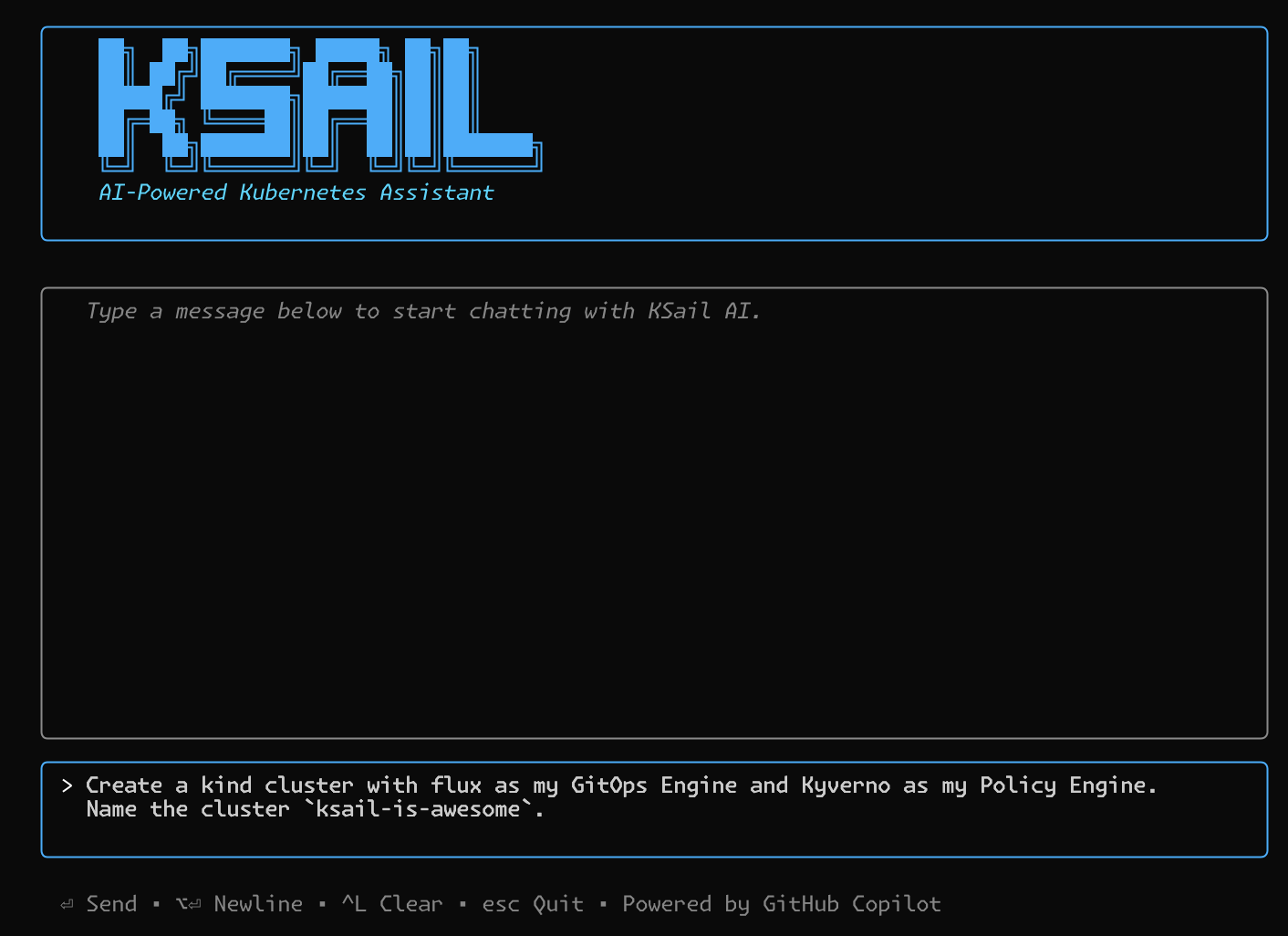
# KSail for local cluster management (my own project!)
brew install devantler-tech/tap/ksail
Cloud CLIs
For cloud development, I have the major cloud provider CLIs installed:
# AWS CLI
brew install awscli

# Azure CLI (via kubelogin for AKS)
brew install kubelogin

# Hetzner Cloud CLI
brew install hcloud
Benefits of Remote Development
- Consistent Environments: Docker ensures the same environment everywhere
- Scalable Resources: Develop on powerful remote machines when needed
- GitOps Workflows: Flux and other tools enable declarative infrastructure
- Cloud-Native Development: First-class support for Kubernetes and cloud services
Conclusion
Setting up macOS as a developer machine requires thoughtful configuration, but the investment pays off in productivity and consistency. The key takeaways from my setup are:
- Use Homebrew for package management - it’s reliable and comprehensive
- Manage dotfiles with MackUp - keeps configurations in sync across machines
- Secure your identity with SSH and GPG keys for authenticated commits
- Invest in your terminal - a good prompt and shell configuration boosts productivity
- Configure your IDE thoroughly - VS Code with the right extensions is incredibly powerful
- Embrace remote development - Docker, Kubernetes, and cloud tools are essential for modern development
I hope this guide helps you set up your own macOS developer machine. Feel free to adapt these configurations to your own needs and preferences.